

"The Winery Roost"

$175.00

Ordering Instructions

After determining the number of days that you would like to stay with us, start by clicking the + in the Cart to 2 (at the bottom of this page). That will set our minimum stay requirement to 2 days and $350.00. After that, you click the + in the cart to add any additional days that you would like to stay. When finished, click the Purchase Button (at the bottom of this page) and proceed to checkout and follow the payment instructions.

“The Winery Roost”

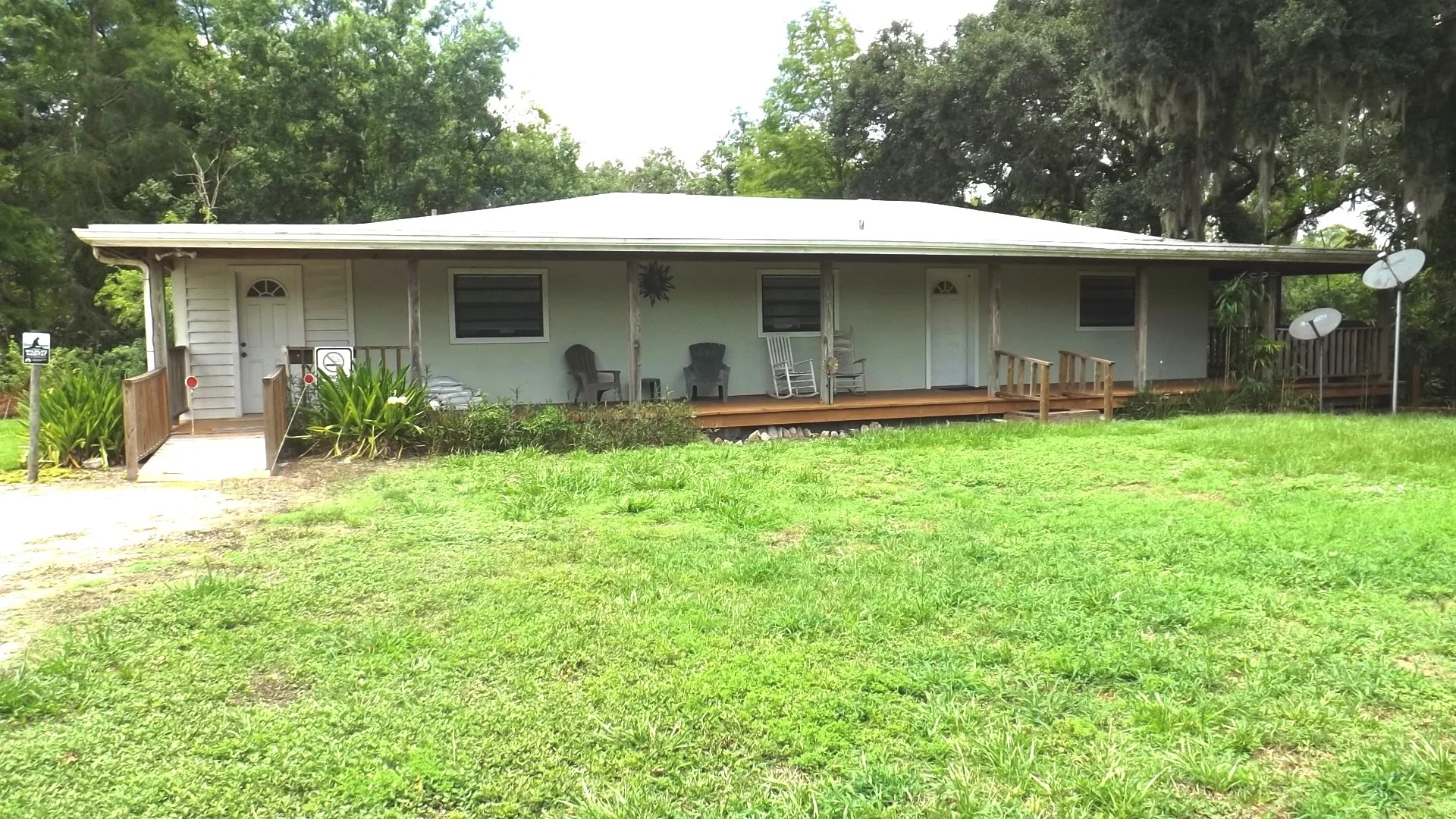
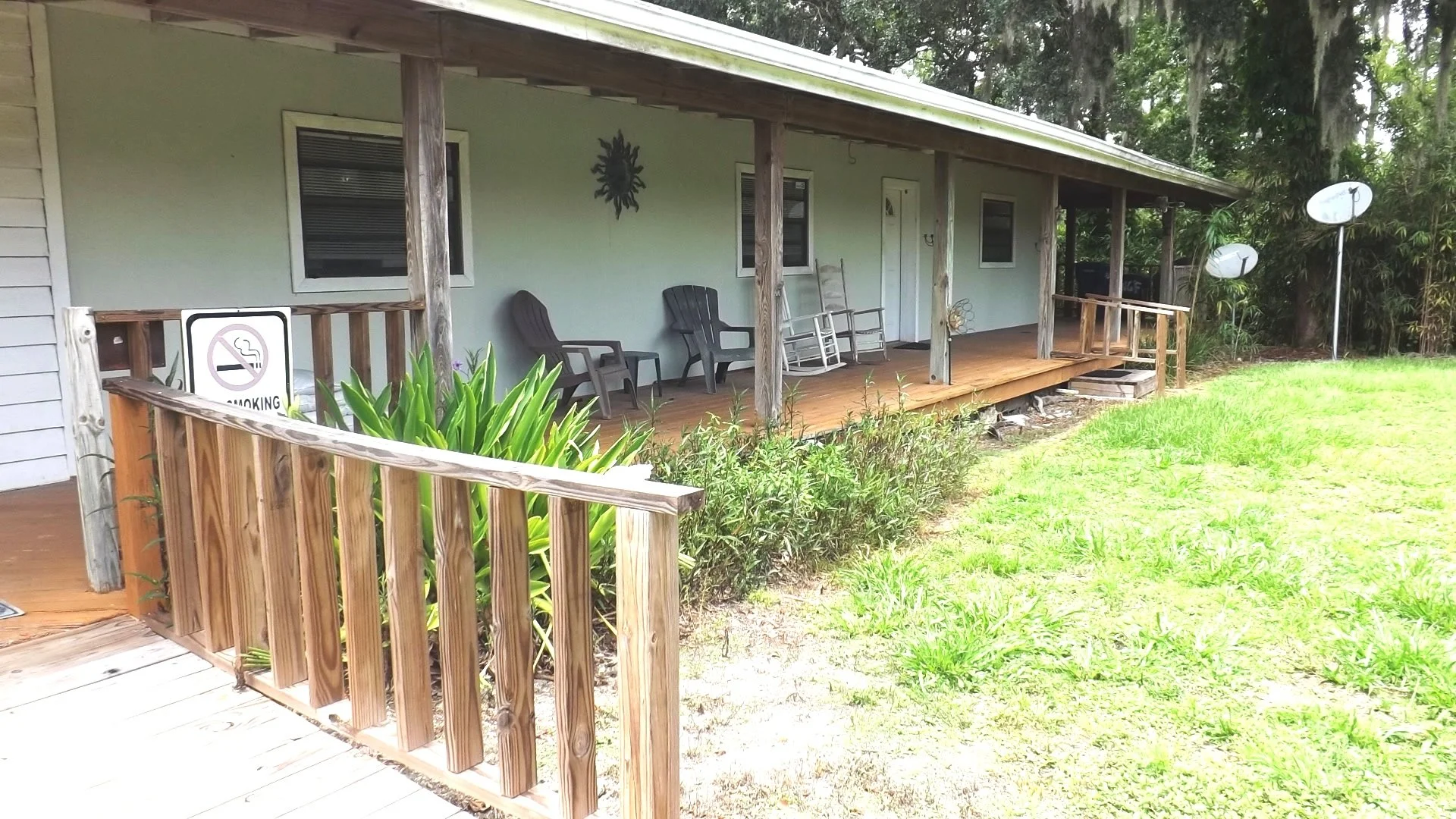
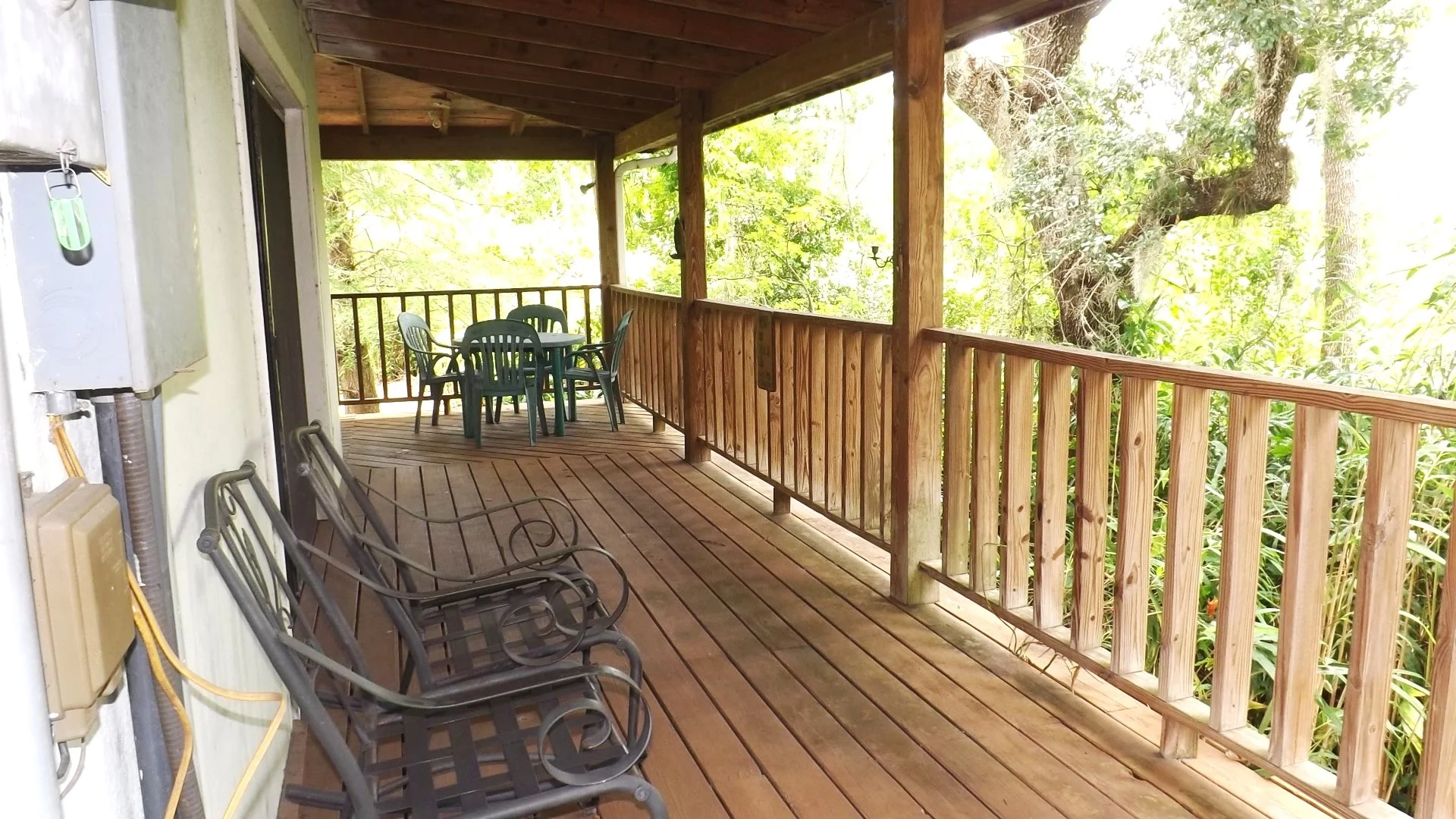
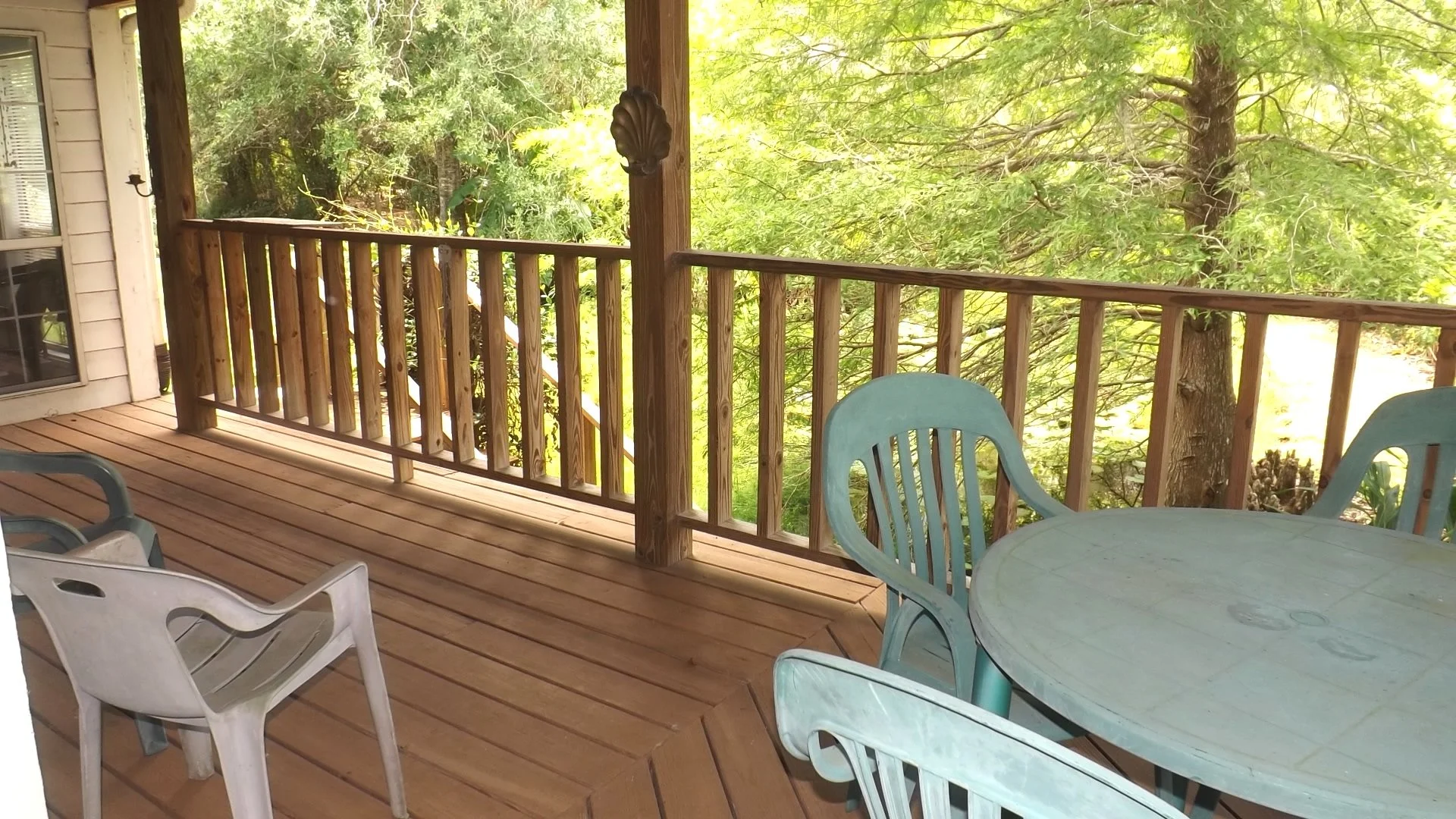
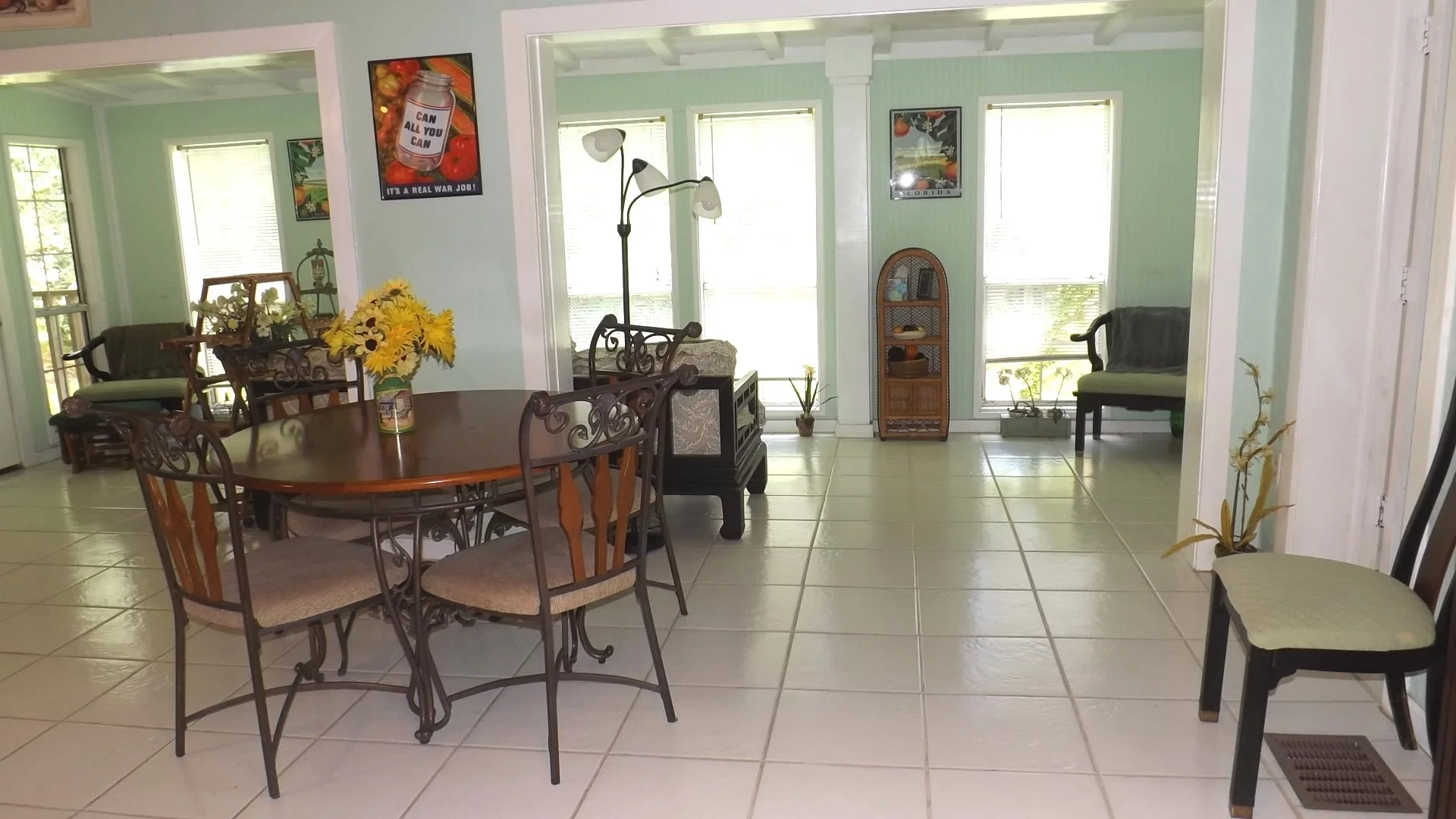
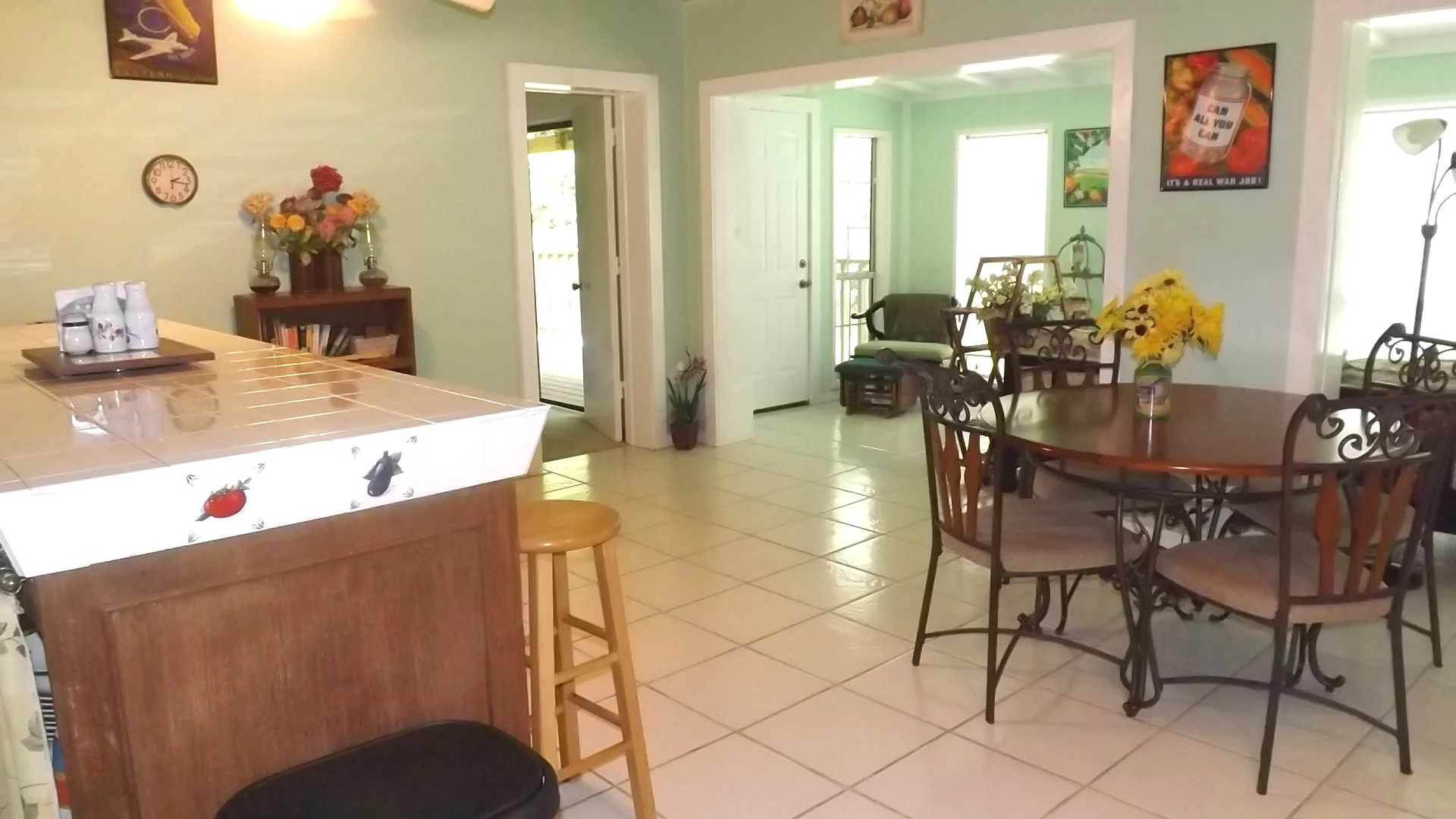
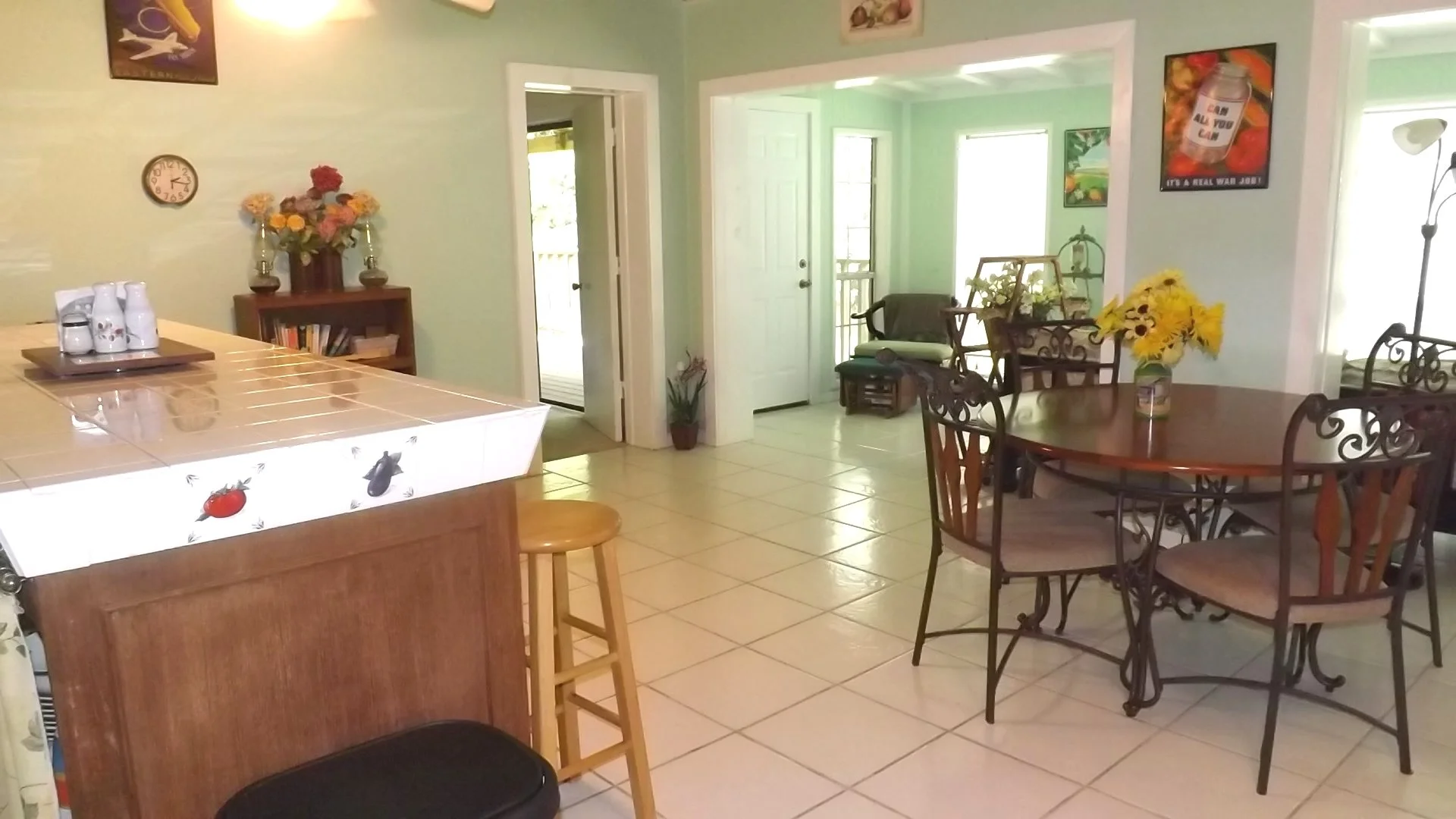
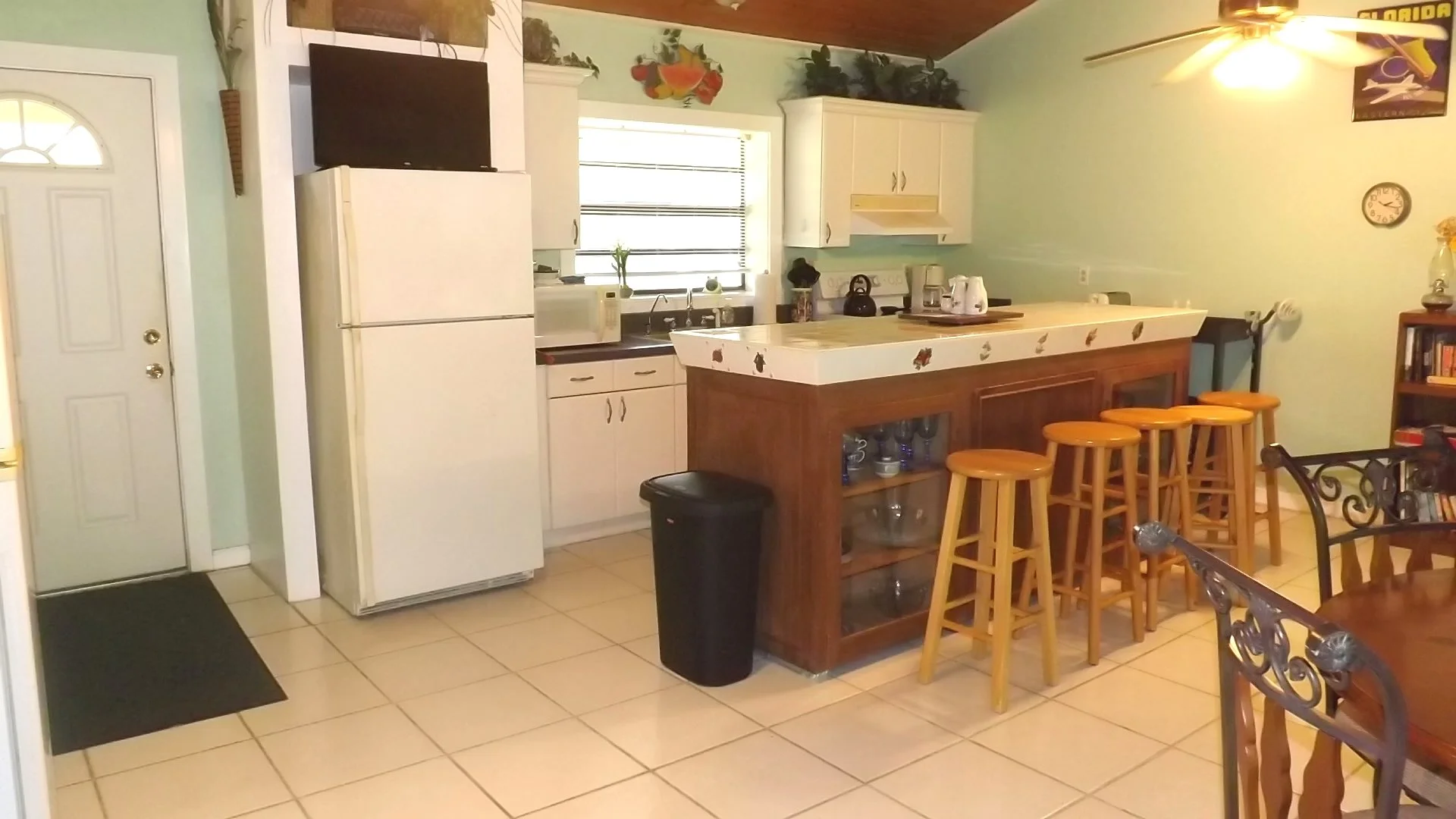
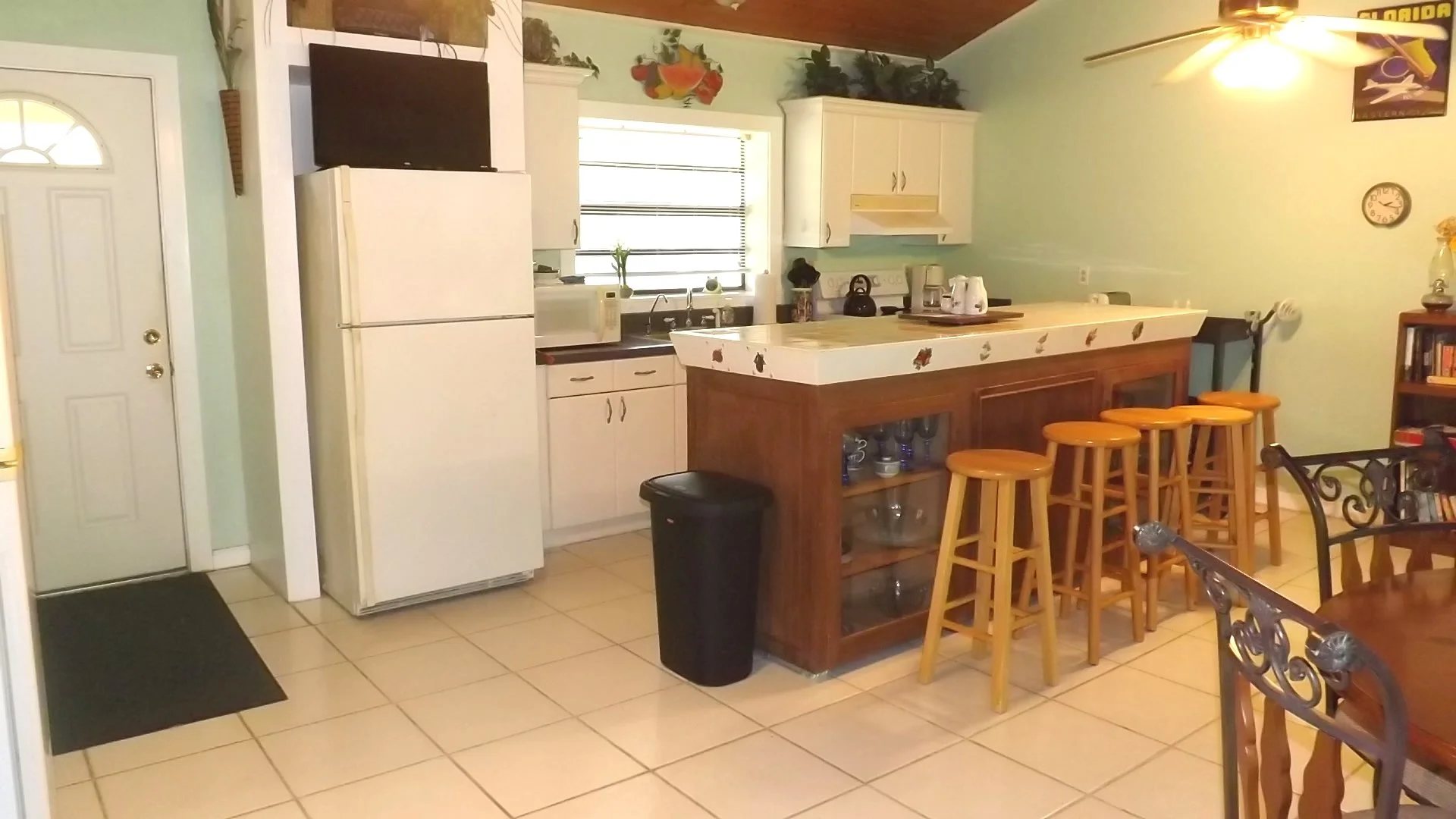
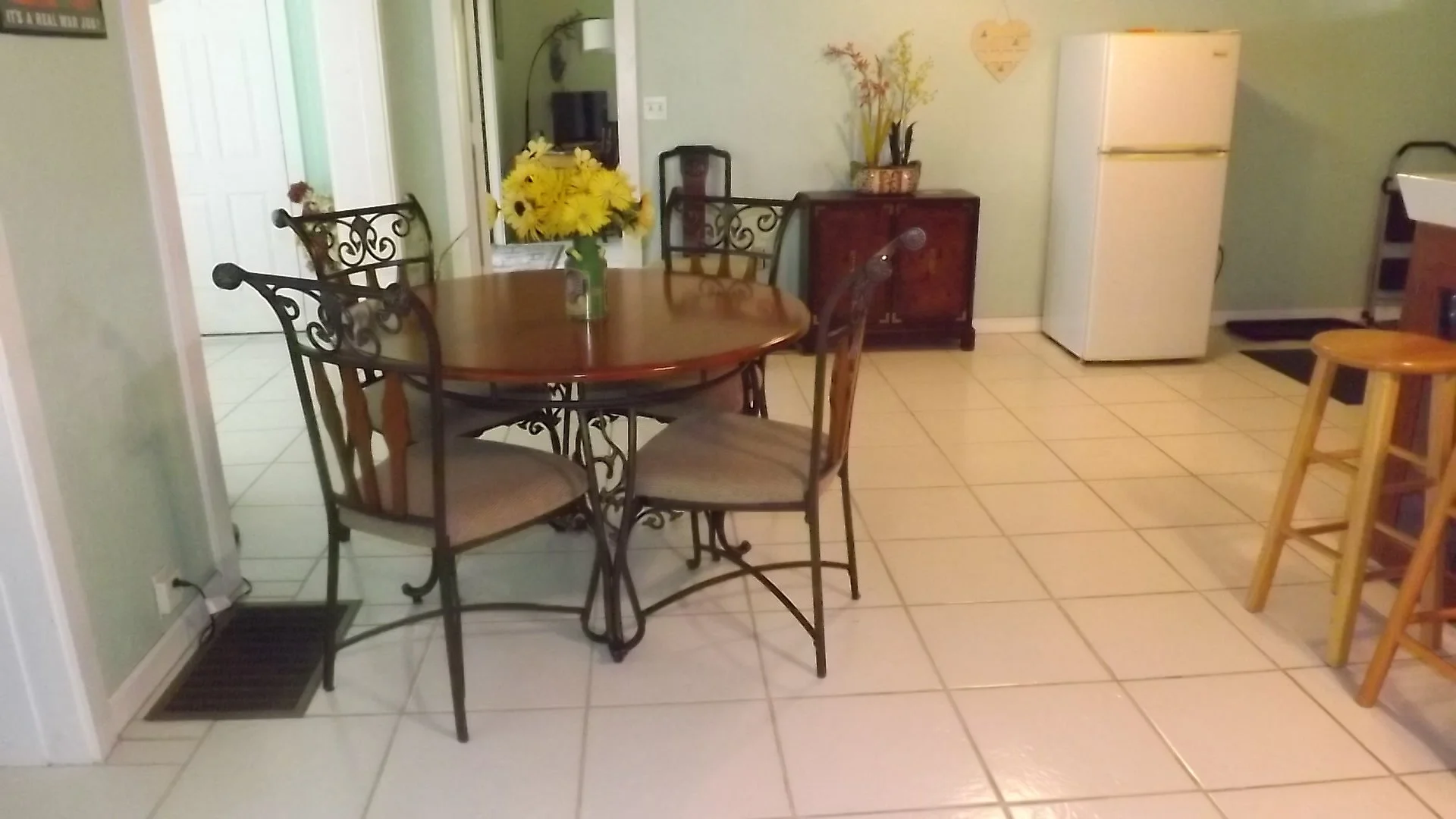
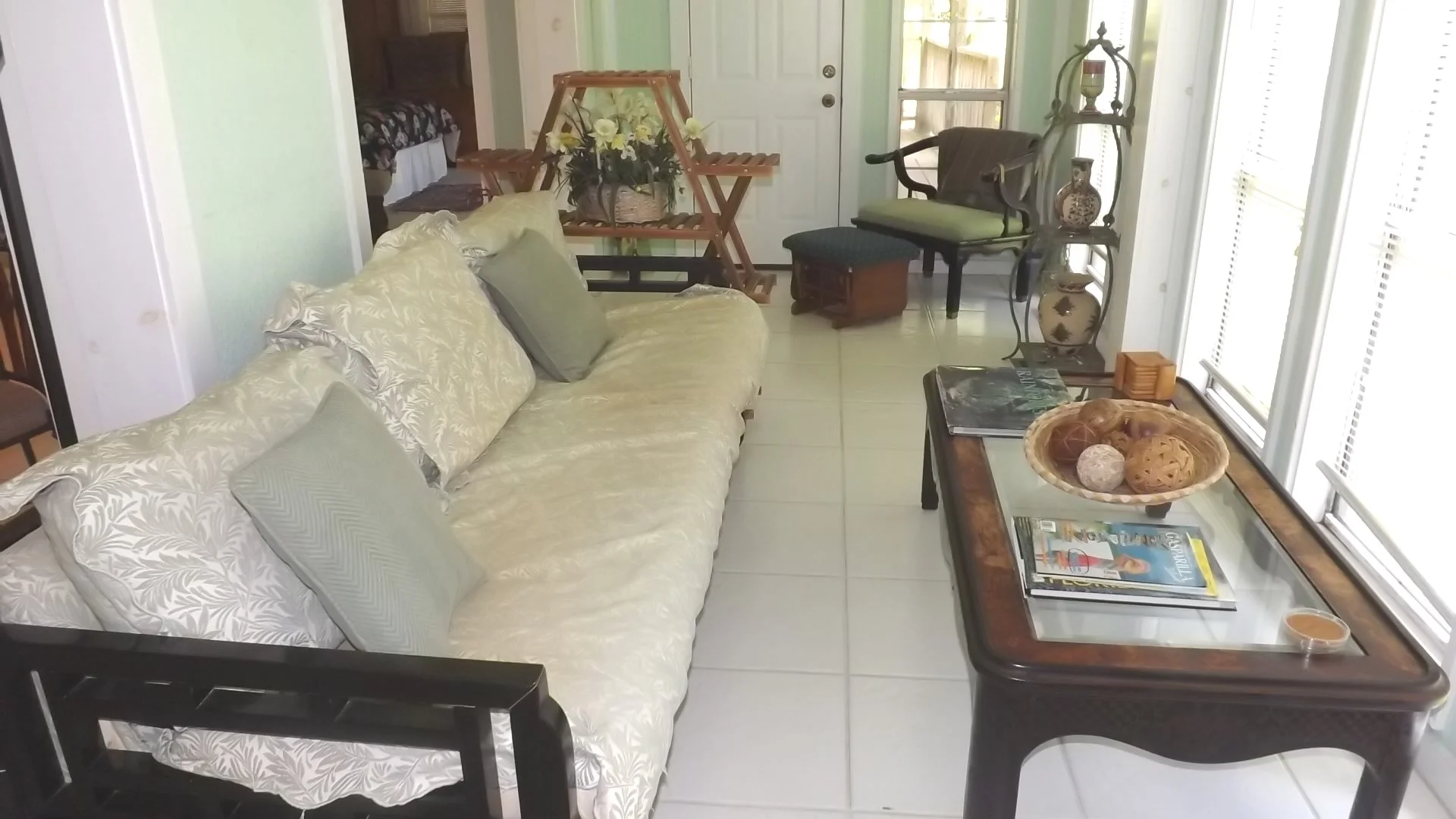
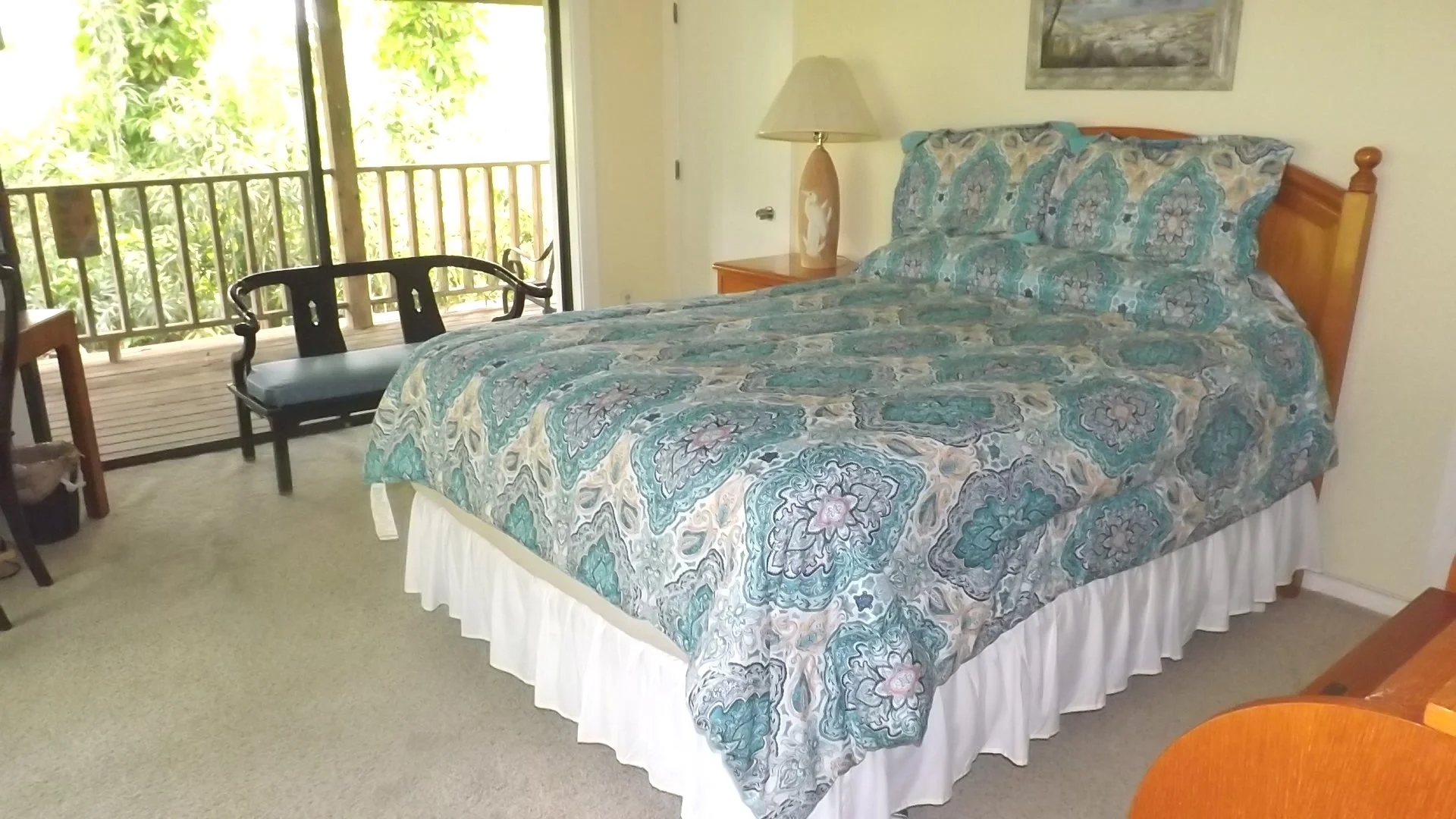
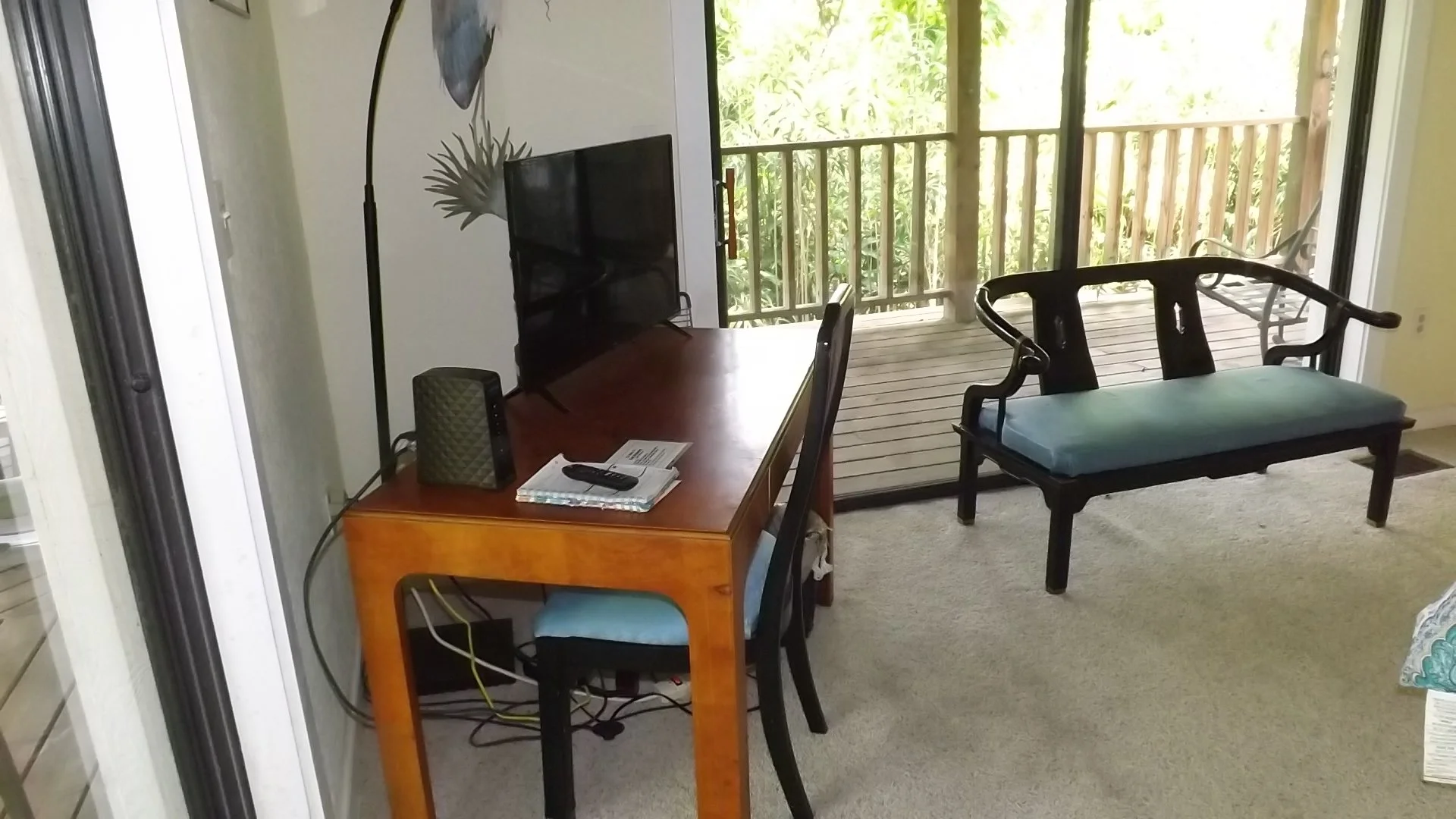
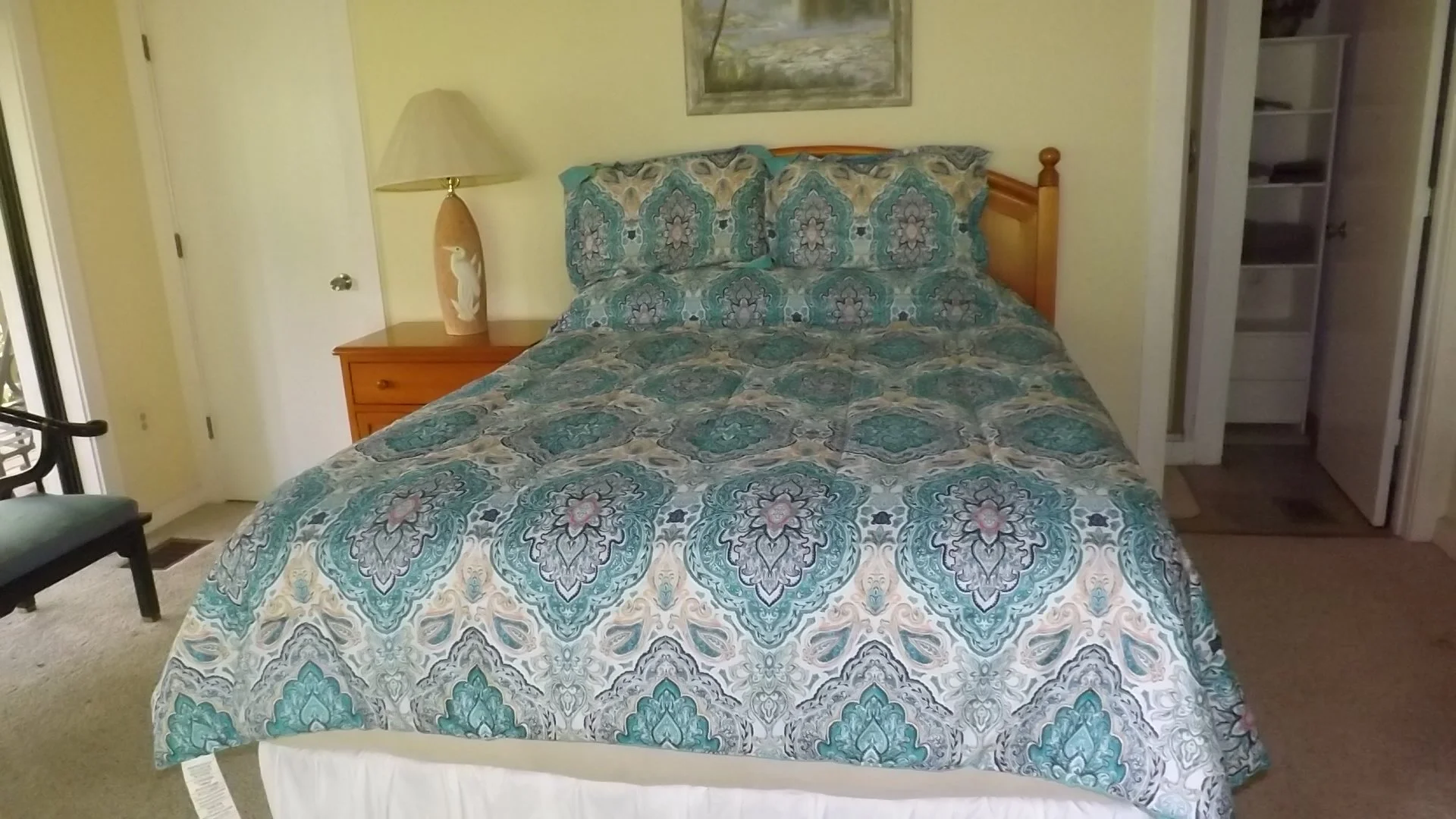
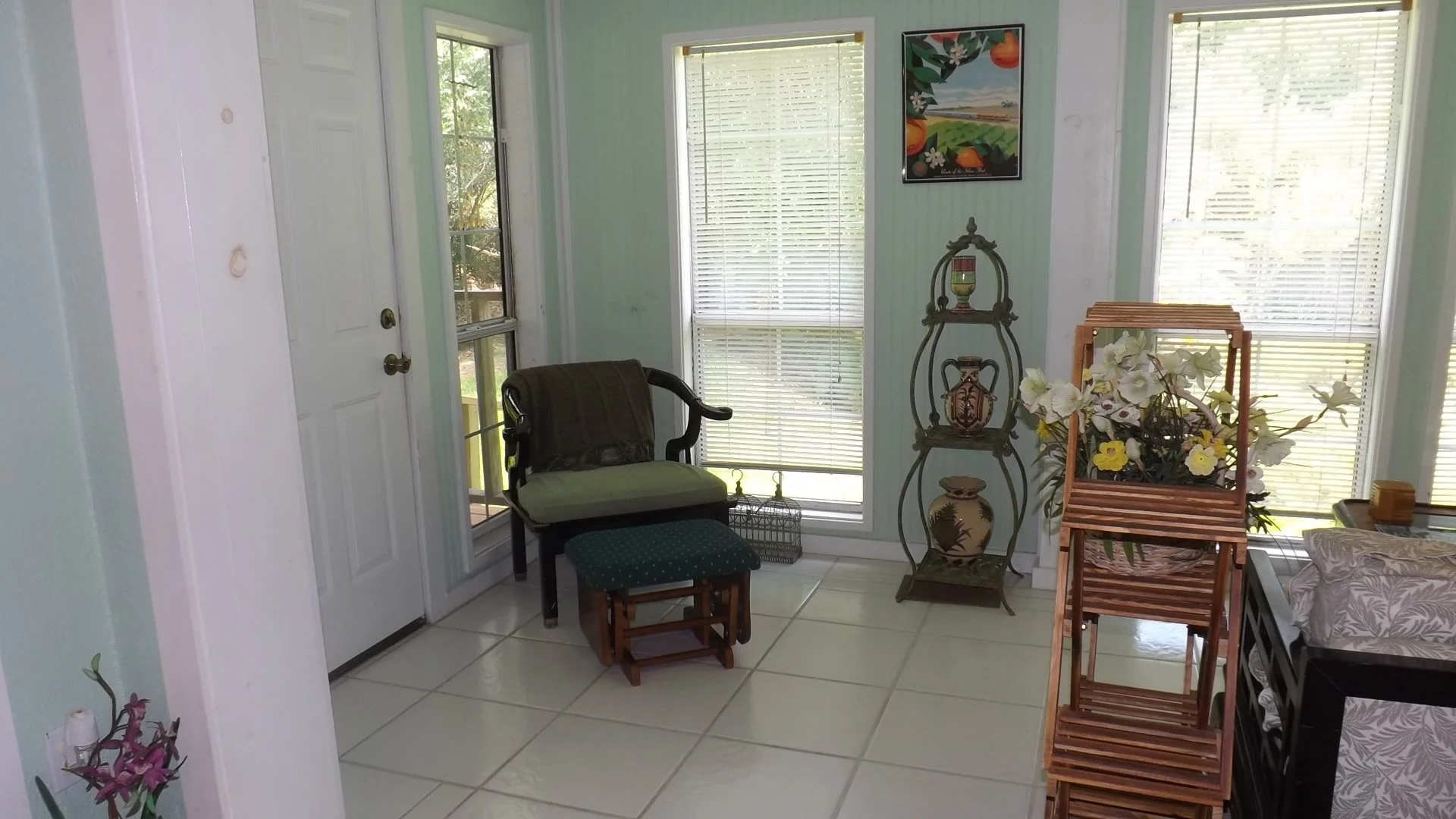
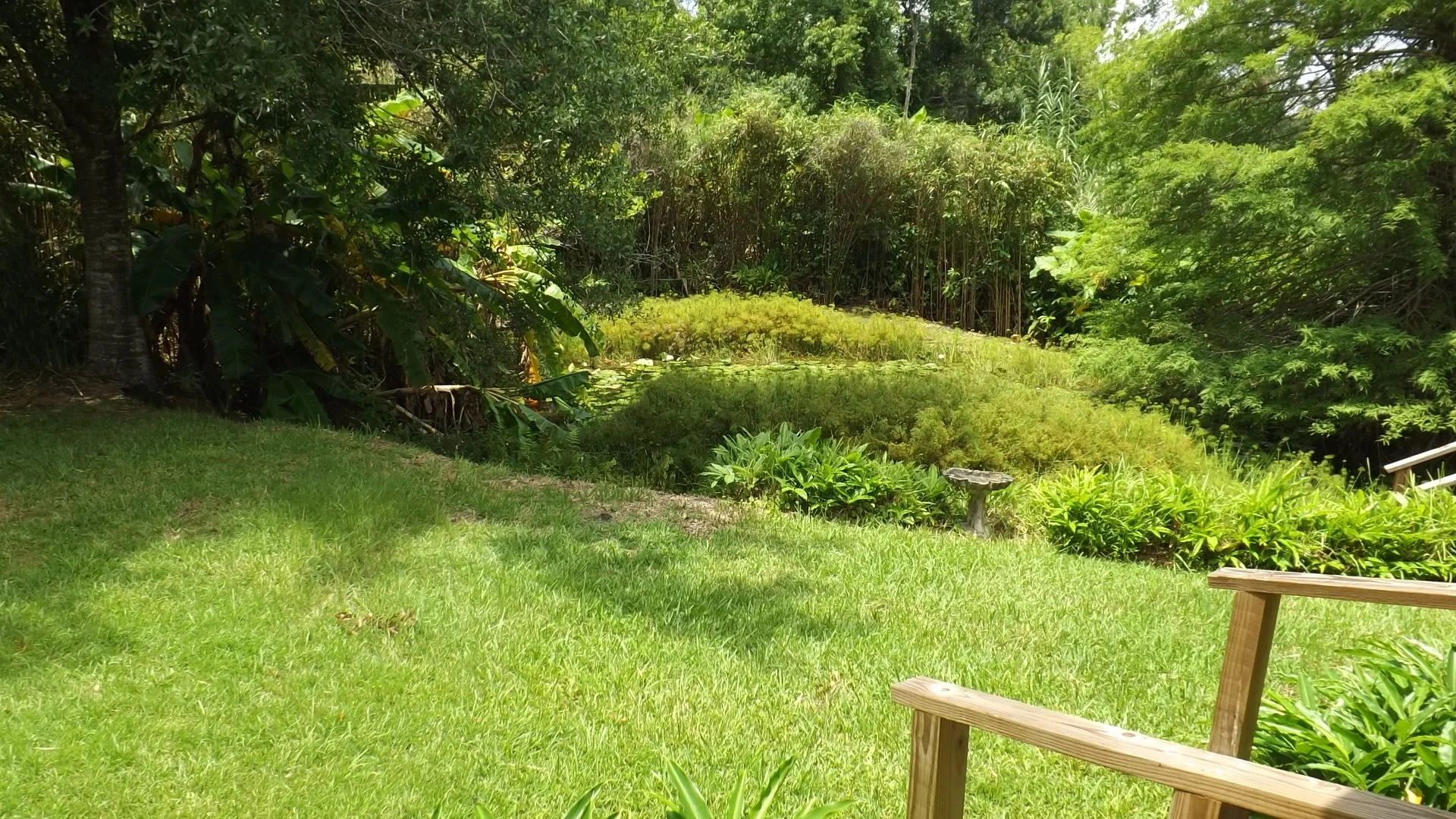
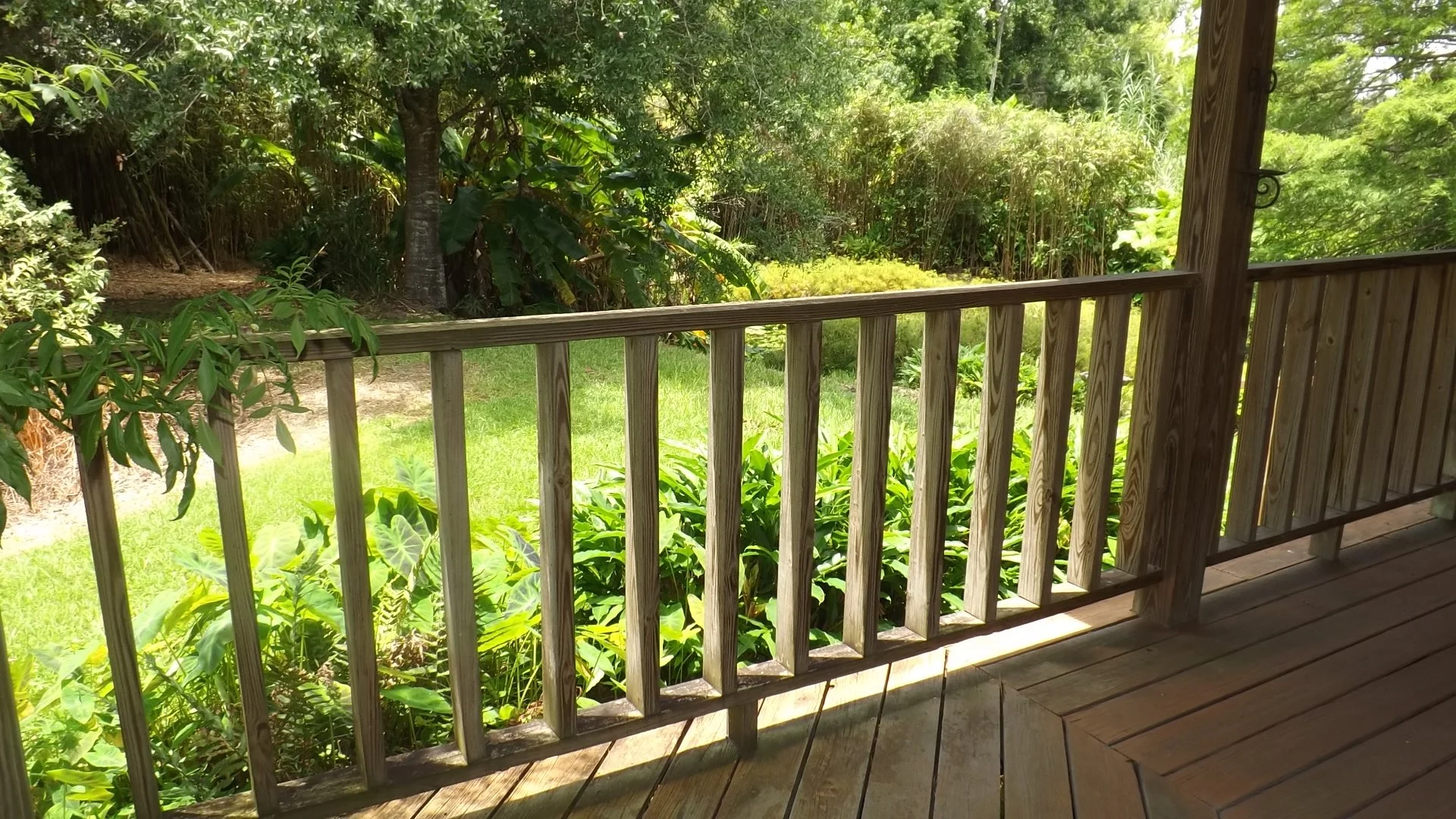
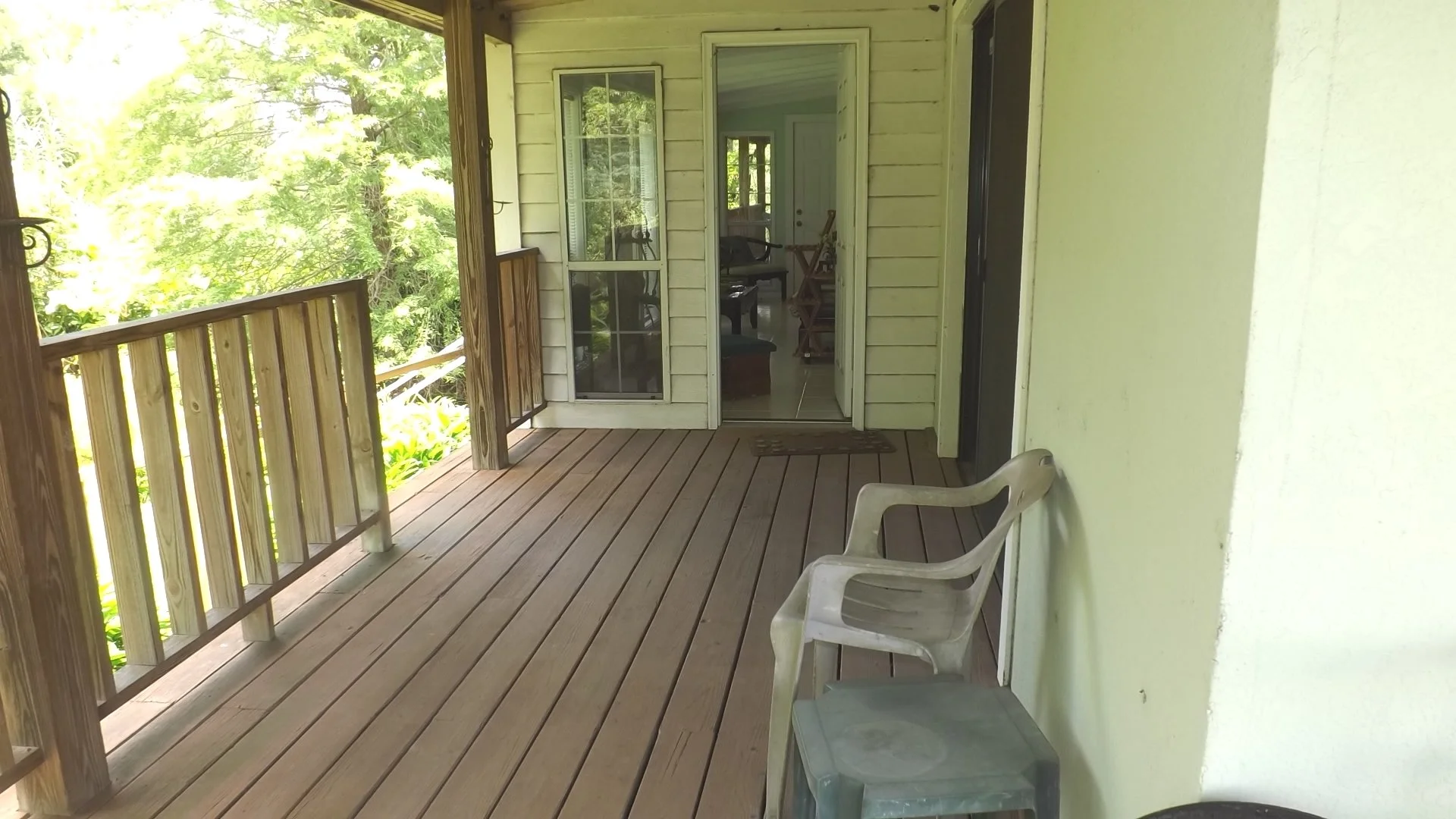
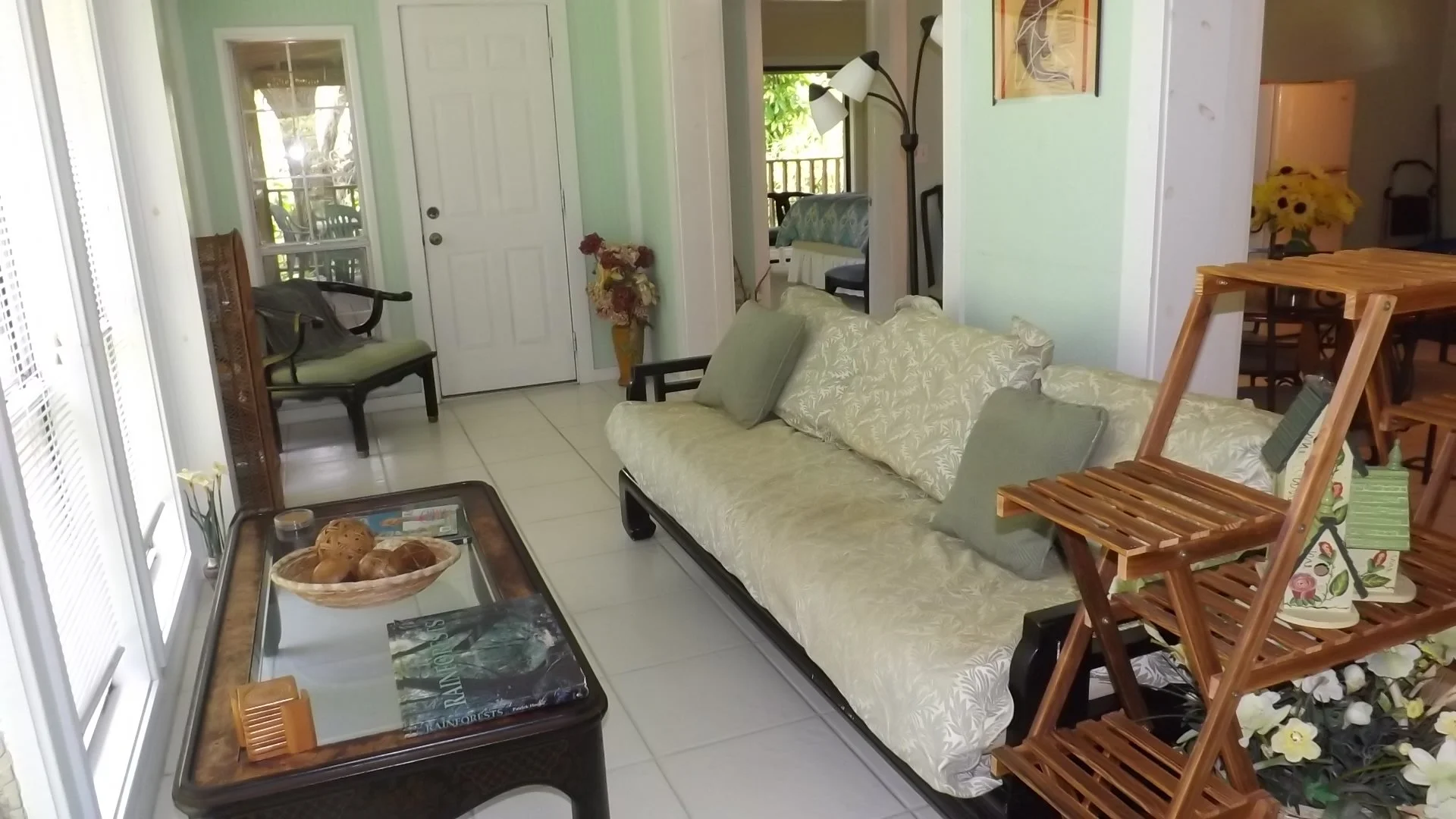
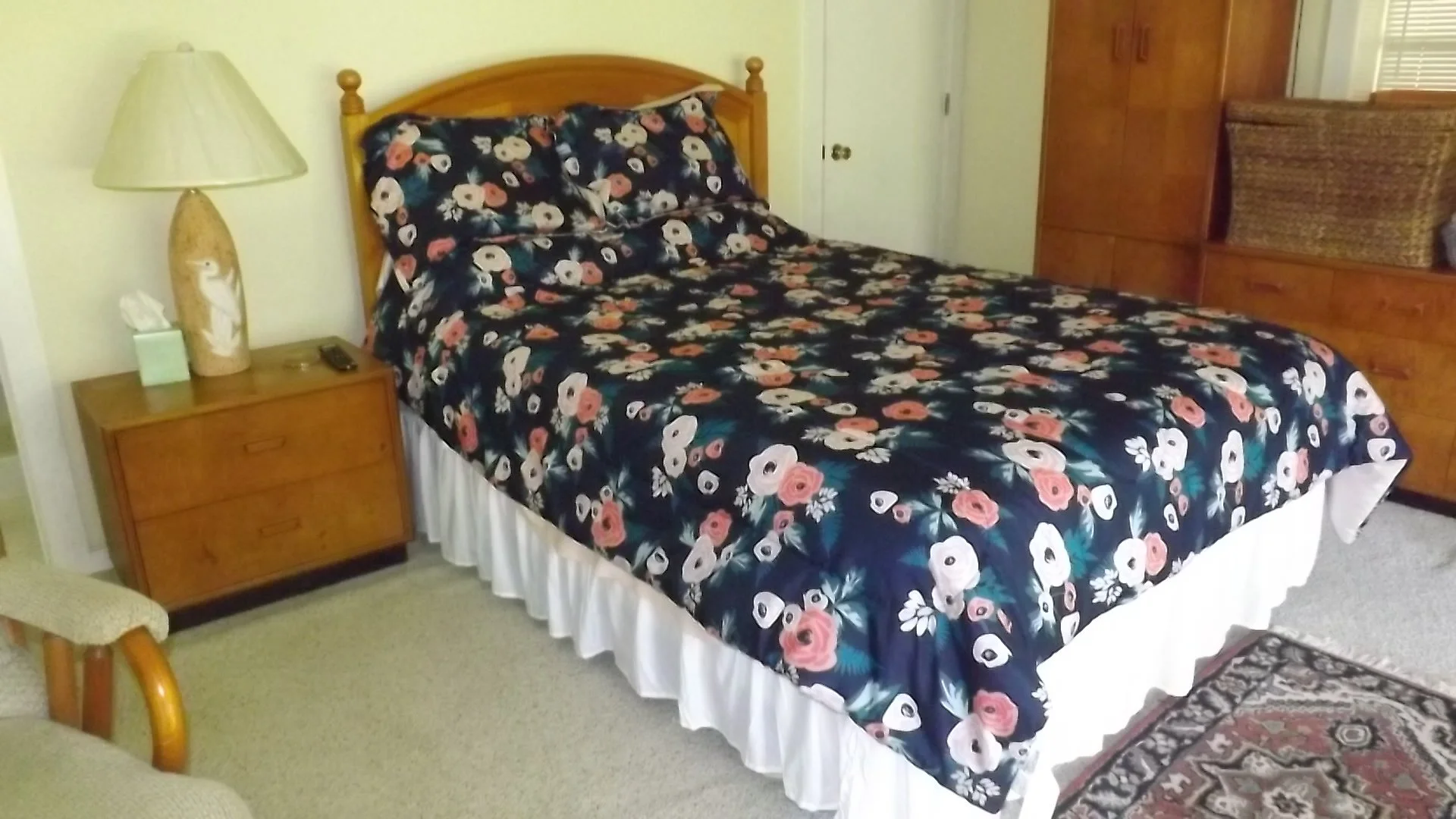
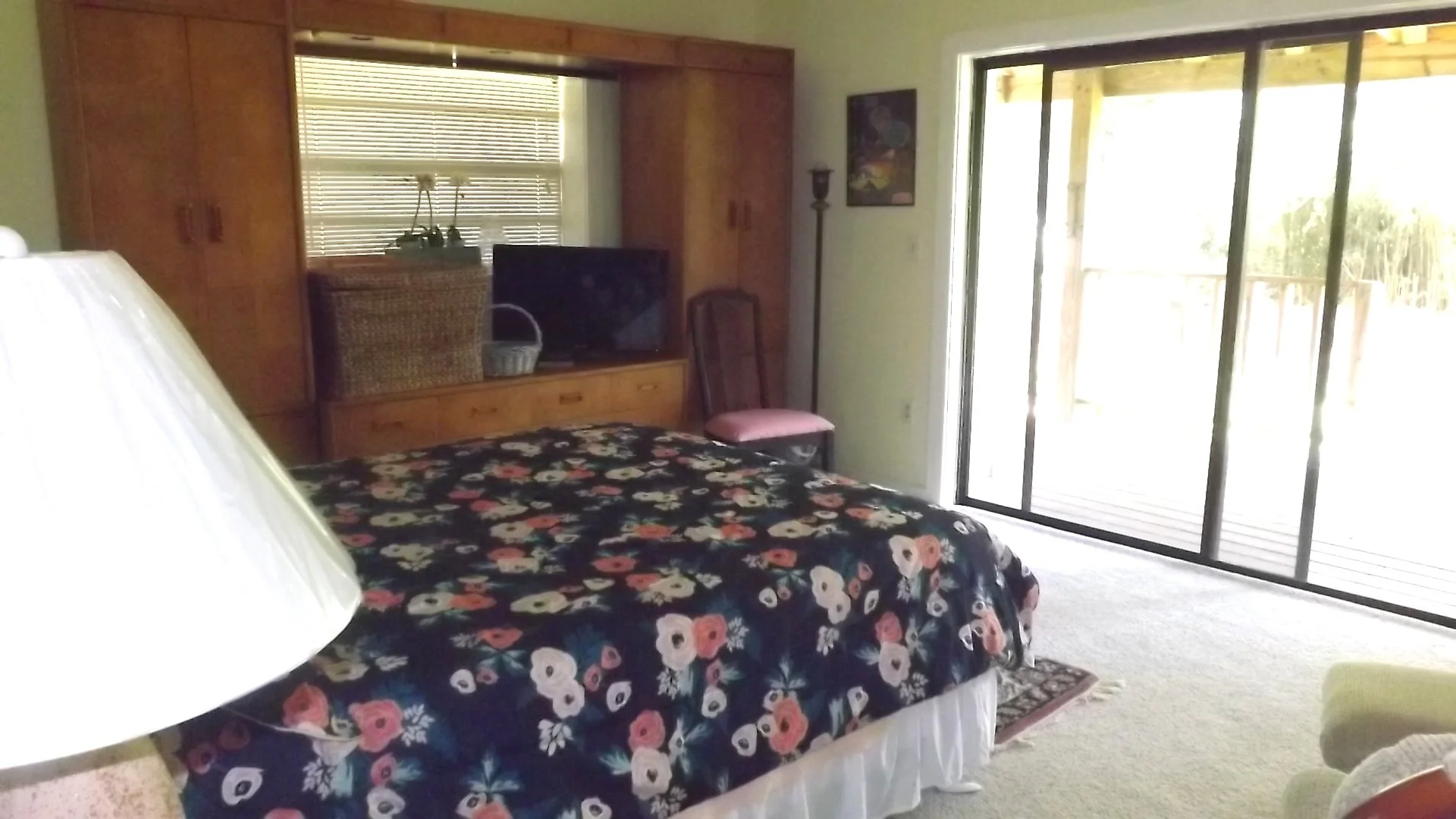
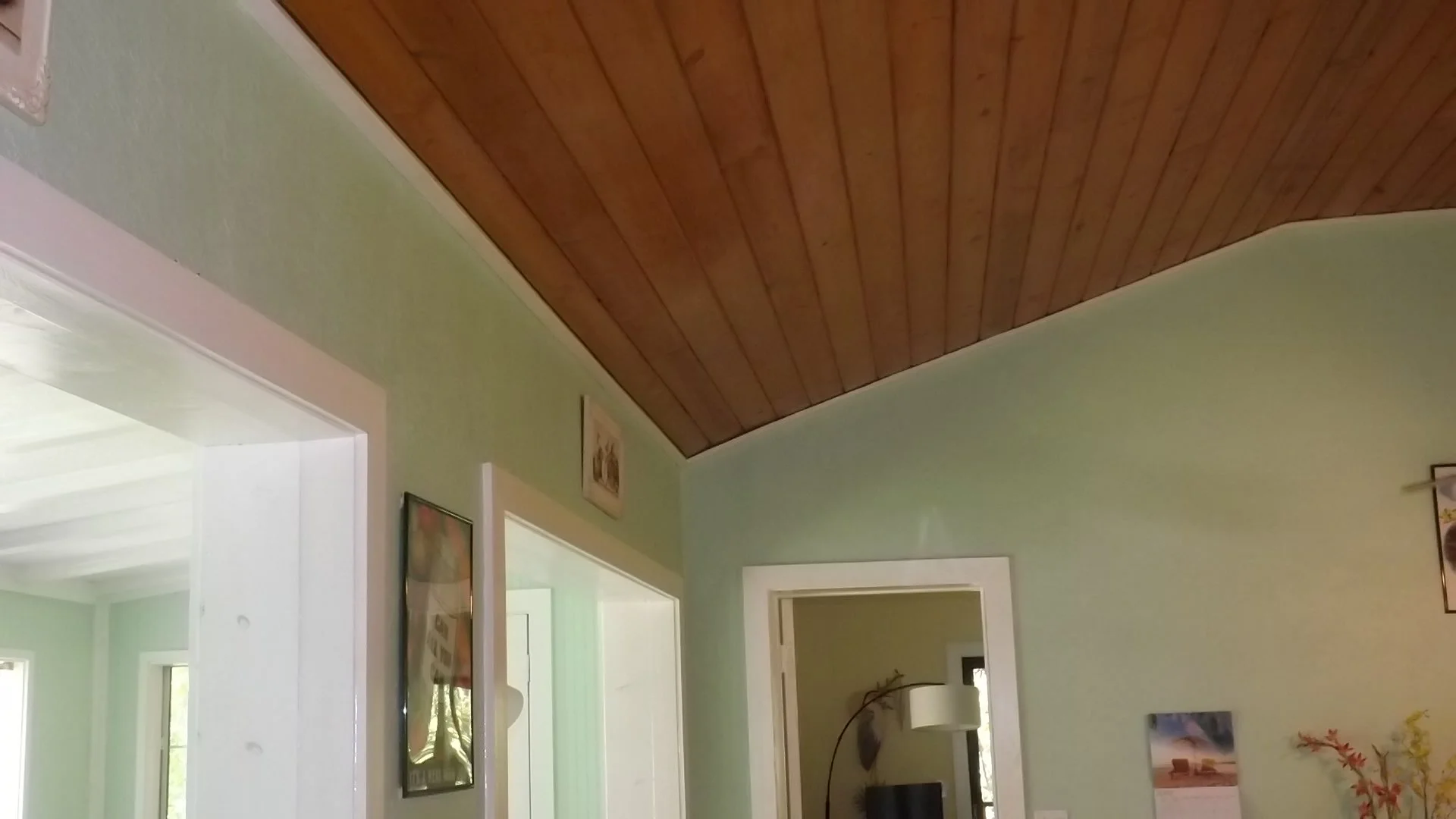
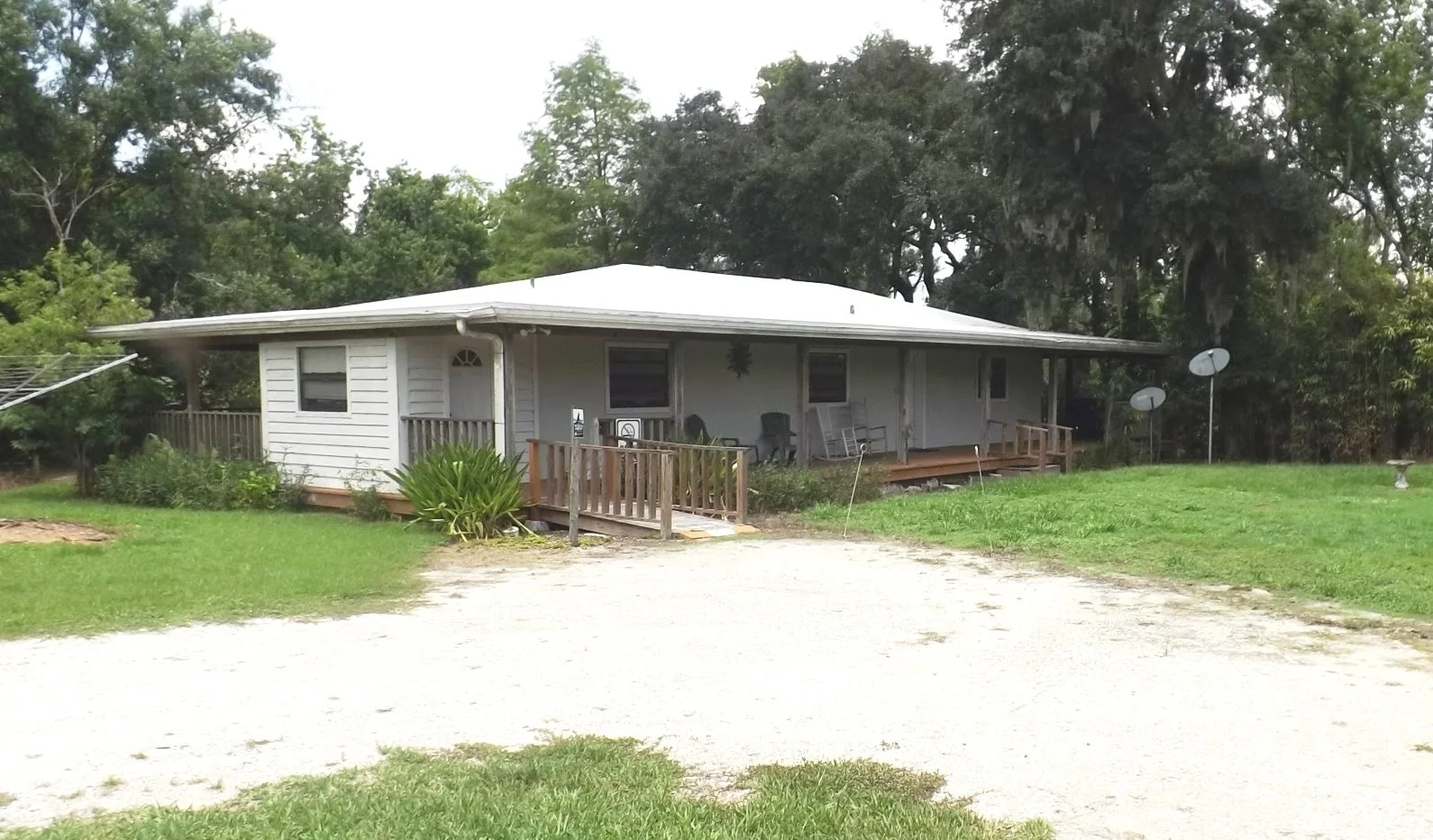
This beautiful 2-bedroom, 2-bath, turn-key furnished house is located on two secluded acres at Bunker Hill Vineyard & Winery in Duette, Florida. Your physical address of the Winery Roost will be 8915 Bunker Hill Rd., Duette, Florida 34219. The house overlooks two natural spring fed water garden ponds and comes with a wrap-around deck with table and chairs to absorb the peace and quiet of nature’s get-away. Because we are a working farm and vineyard/winery, you will see in the front of the property rows of Florida Red Cedar Christmas Trees. There’s a winding Florida shell pathway that connects your Winery Roost to our wine tasting building at our vineyard/winery.

Amenities:

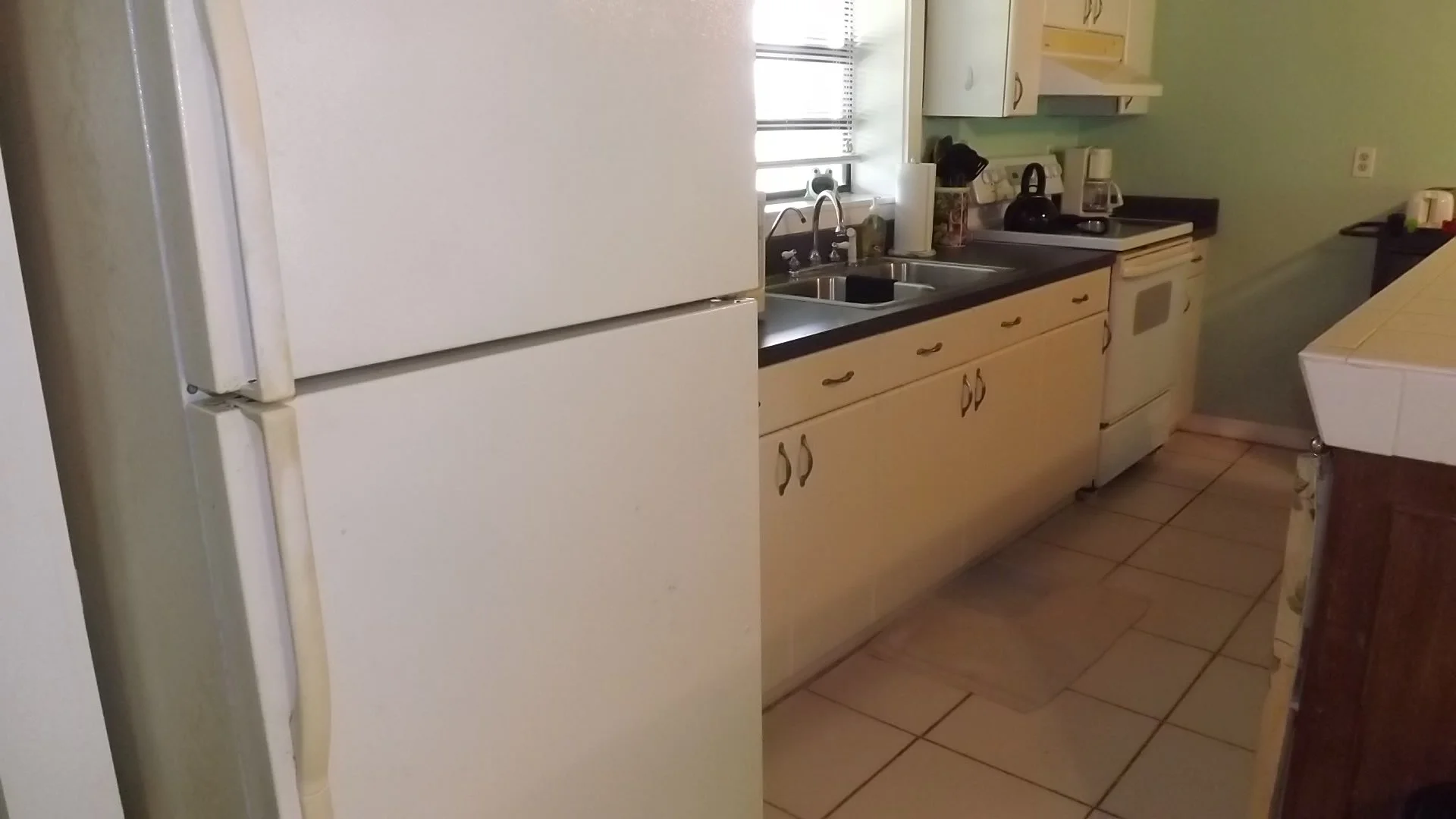
  • Complete Kitchen

  • Laundry Room with Washer & Dryer

  • Central Heat & Air

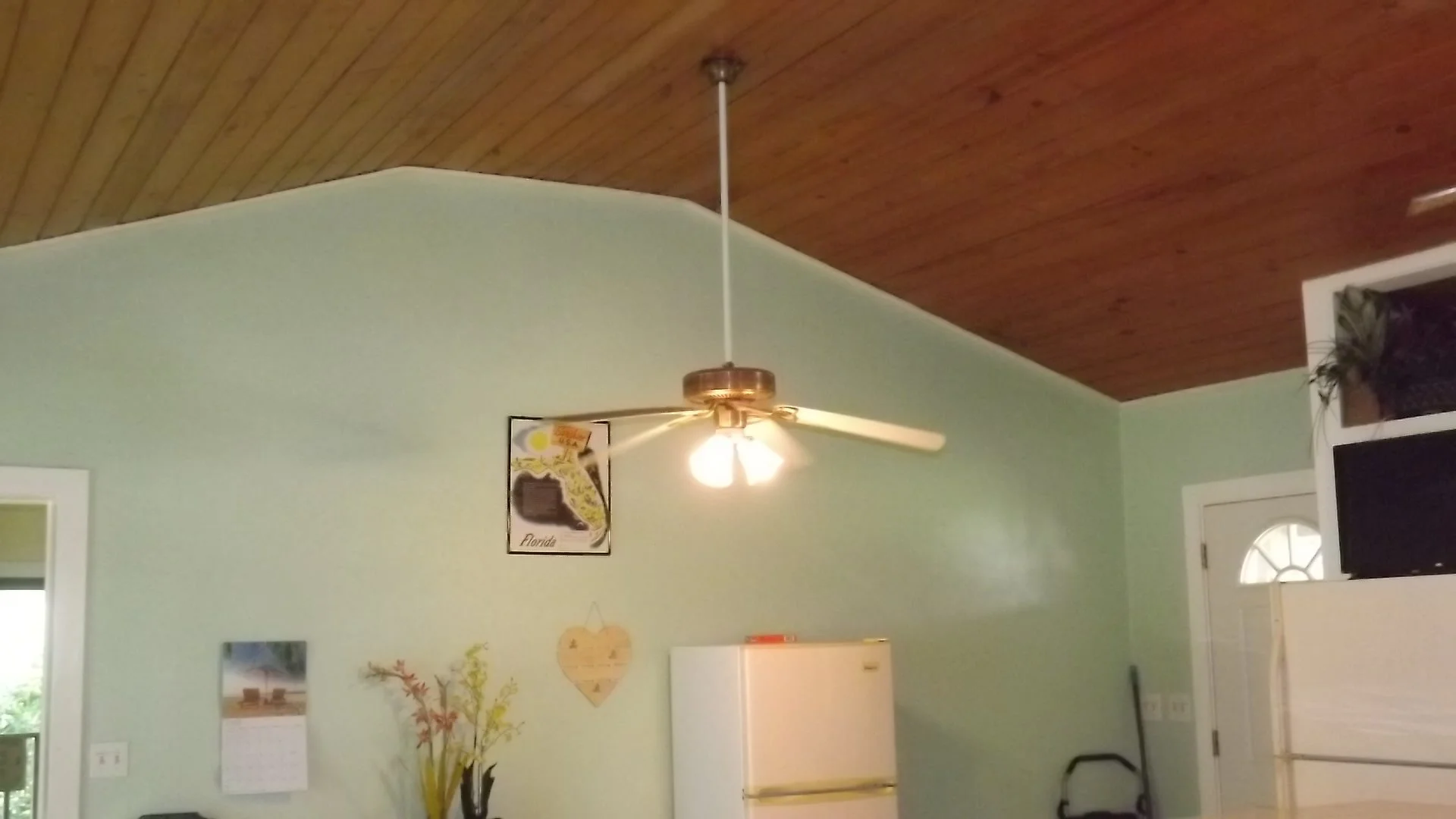
  • Ceiling Fans

  • Outdoor Flood Lighting

  • Internet + Wi-Fi

  • Deck Lighting

  • Walk-Around Covered Deck

  • Fenced for Privacy

  • Water Purification and Softener System

  • Deck Chairs & Table

  • Sorry, No Smoking is Allowed

  • Sorry No Pets (Please Read: “We love all pets and all animals. In fact, we love them so much that we created a wildlife preserve for our entire property. Bunker Hill Vineyard & Winery is certified by the National Wildlife Federation as a ‘Protected Environment for Florida Wildlife’. It is for this reason that domestic pets cannot be brought to or boarded at the Winery Roost. Of course, certified & licensed Service Animals are always welcome. We thought that you would like to know.)

Our Rental Rates:

  • Nightly (2-night minimum stay): $175.00 per night (includes 6% Manatee County Resort Tax).

  • If you wish to stay with us for a Week, Month or Season, please call us at 941-776-0418 for Special & Discounted Rates.

  • Check-In time is 2:00 pm and Check-Out time is 11:00 am.

  • All rates are based upon double occupancy. Additional guests (up to 4) are charged $20.00 per person, per night (payable at check-in upon arrival).

    (NOTE: The Winery Roost is Rented from January 2, 2027, to March 31, 2027).

Special Discounts & Offers:

  1. Complimentary (FREE) Wine Tasting Experience at our Winery for YOU and ALL of Your Adult Guests!

  2. 10% OFF Your Entire Wine Order(s) During Your Stay for YOU and ALL of Your Adult Guests.

  3. 5% OFF Any Wine Accessory Purchases During Your Stay for YOU and ALL of Your Adult Guests.

  4. We Use ONLY 100% Recycled 750ml Wine Bottles, 12 oz Beer Bottles and 8 oz. Canning Jars. If You & Each of Your Adult Guests bring us and Empty Case of any of the above bottles/jars (completely clean/rinsed out), we will Give You an EXTRA 5% OFF Your Entire Wine Order(s). We ARE the “Greenest Winery in America”!

Final Instructions:

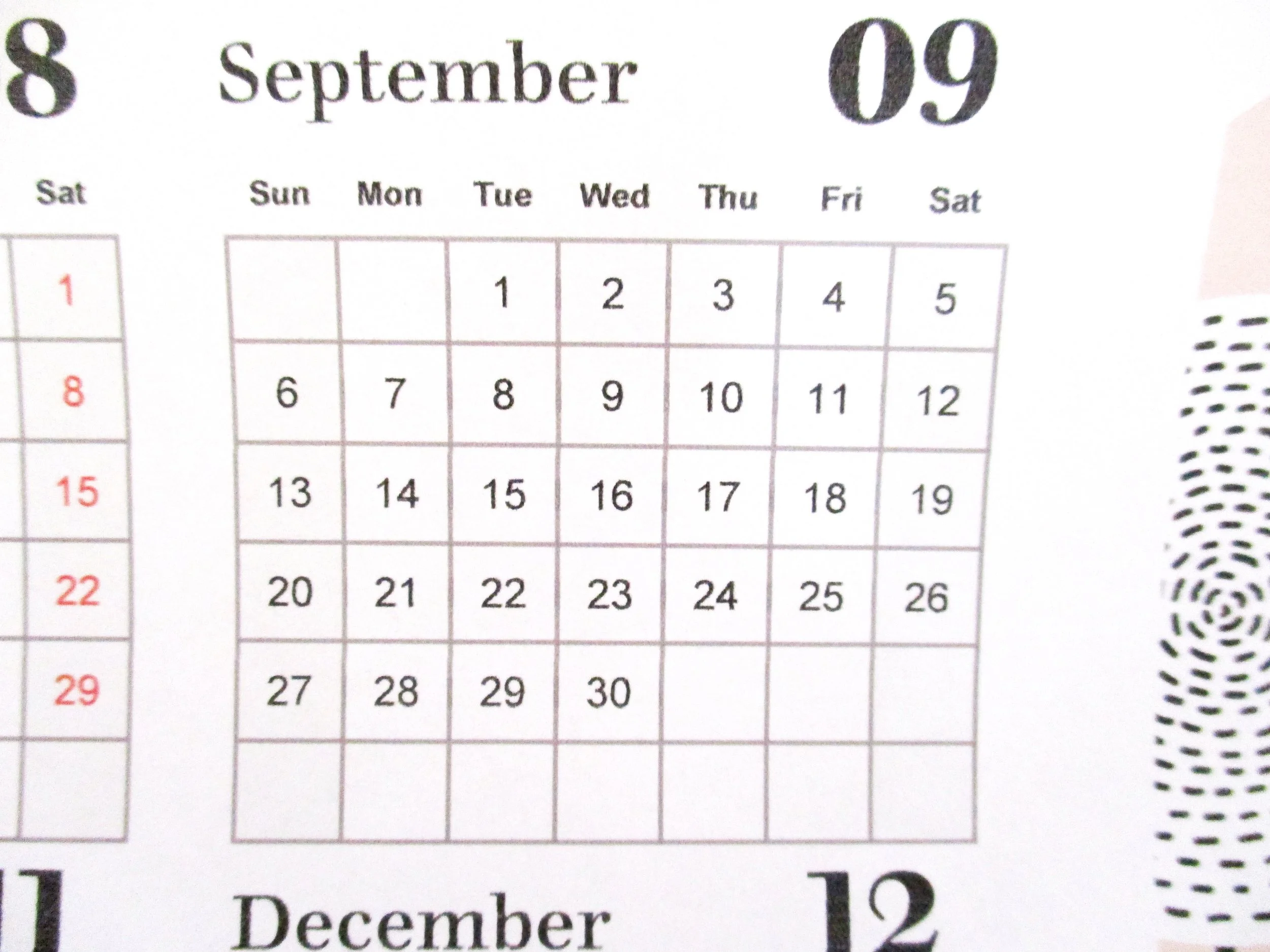
For availability, check our Monthly Calendars. Once you’ve chosen your dates and paid for your reservation (top of this page), please drop us an email with those dates and month (use the Contact Button). We will block out those dates and times on the calendar; your reservation is now booked. Have a safe trip. We are Excited to see you……Larry & Lenora. If you need more information or would like to Book a Reservation in person, please call us at 941-776-0418.

To paste a calendar from Microsoft Word into the Details section of a product page, follow these steps. (If your product page editor is a web-based rich text editor, the instructions below apply; if it’s a custom CMS, some steps may vary.)

  1. Prepare the calendar in Word

    • Make sure the calendar in Word is formatted exactly how you want it to appear (font, cell sizes, borders).

    • If the calendar is created as a table, check that table fits within a typical page width to avoid overflow when pasted.

  2. Option A — Paste as editable table (best if your editor supports tables)

    • Select the entire calendar table in Word: click the table handle in the top-left corner or click and drag to highlight all cells.

    • Copy (Ctrl+C or right-click > Copy).

    • In the product page Details editor, place the cursor where you want the calendar.

    • Paste (Ctrl+V or right-click > Paste).

    • If the editor supports pasting Word tables, the calendar will paste as an editable table. Adjust columns, rows, fonts, and borders using the editor’s table tools as needed.

  3. Option B — Paste as formatted HTML (if editor offers “Paste from Word”)

    • Many editors include a “Paste from Word” or “Paste as plain text / keep formatting” option in the toolbar or context menu. Use that to preserve Word formatting and remove problematic Word-specific markup.

    • Paste inside that dialog or use the editor’s paste command. Verify the result and adjust styling in the editor.

  4. Option C — Use an image (best when formatting must be exact)

    • In Word, select the calendar and copy, then open any simple image editor (or paste into PowerPoint and save as image).

    • Alternatively, in Word: select the table, right-click > Save as Picture (or copy and paste into Paint and save as PNG/JPEG).

    • In the product page Details editor, use the image upload/insert tool to upload the saved image.

    • Insert the image and resize as needed. This preserves exact layout but is not editable or accessible to screen readers.

  5. Option D — Convert to HTML manually (best for control and accessibility)

    • In Word, save the document as Web Page, Filtered (.html) or copy the table and paste into a simple HTML editor.

    • Clean up the HTML (remove Word-specific styles) and ensure simple, semantic markup (table, thead, tbody, td).

    • In your product page editor, switch to HTML/source view and paste the cleaned HTML.

    • Save and preview to confirm layout and responsiveness.

  6. Accessibility and responsiveness tips

    • If you paste as a table or HTML, add a caption and proper header cells (th) for accessibility.

    • Avoid very wide fixed widths; use percentages or max-width so the calendar displays on mobile.

    • If you use an image, add alt text describing the calendar and important dates.

  7. Troubleshooting

    • If paste loses formatting: try “Paste from Word” or paste into a plain text area then reformat, or use the image option.

    • If the CMS strips table tags: you may need to use the HTML/source view or contact your platform support to enable table/Word paste functionality.

    • If the calendar looks too large or small: adjust font size, cell padding in the editor, or resize the inserted image.

If you tell me which CMS or product page editor you’re using (name or a screenshot of the editor toolbar), I can give exact steps tailored to that interface.

THANK YOU!

Ordering Instructions

After determining the number of days that you would like to stay with us, start by clicking the + in the Cart to 2 (at the bottom of this page). That will set our minimum stay requirement to 2 days and $350.00. After that, you click the + in the cart to add any additional days that you would like to stay. When finished, click the Purchase Button (at the bottom of this page) and proceed to checkout and follow the payment instructions.

“The Winery Roost”

This beautiful 2-bedroom, 2-bath, turn-key furnished house is located on two secluded acres at Bunker Hill Vineyard & Winery in Duette, Florida. Your physical address of the Winery Roost will be 8915 Bunker Hill Rd., Duette, Florida 34219. The house overlooks two natural spring fed water garden ponds and comes with a wrap-around deck with table and chairs to absorb the peace and quiet of nature’s get-away. Because we are a working farm and vineyard/winery, you will see in the front of the property rows of Florida Red Cedar Christmas Trees. There’s a winding Florida shell pathway that connects your Winery Roost to our wine tasting building at our vineyard/winery.

Amenities:

  • Complete Kitchen

  • Laundry Room with Washer & Dryer

  • Central Heat & Air

  • Ceiling Fans

  • Outdoor Flood Lighting

  • Internet + Wi-Fi

  • Deck Lighting

  • Walk-Around Covered Deck

  • Fenced for Privacy

  • Water Purification and Softener System

  • Deck Chairs & Table

  • Sorry, No Smoking is Allowed

  • Sorry No Pets (Please Read: “We love all pets and all animals. In fact, we love them so much that we created a wildlife preserve for our entire property. Bunker Hill Vineyard & Winery is certified by the National Wildlife Federation as a ‘Protected Environment for Florida Wildlife’. It is for this reason that domestic pets cannot be brought to or boarded at the Winery Roost. Of course, certified & licensed Service Animals are always welcome. We thought that you would like to know.)

Our Rental Rates:

  • Nightly (2-night minimum stay): $175.00 per night (includes 6% Manatee County Resort Tax).

  • If you wish to stay with us for a Week, Month or Season, please call us at 941-776-0418 for Special & Discounted Rates.

  • Check-In time is 2:00 pm and Check-Out time is 11:00 am.

  • All rates are based upon double occupancy. Additional guests (up to 4) are charged $20.00 per person, per night (payable at check-in upon arrival).

    (NOTE: The Winery Roost is Rented from January 2, 2027, to March 31, 2027).

Special Discounts & Offers:

  1. Complimentary (FREE) Wine Tasting Experience at our Winery for YOU and ALL of Your Adult Guests!

  2. 10% OFF Your Entire Wine Order(s) During Your Stay for YOU and ALL of Your Adult Guests.

  3. 5% OFF Any Wine Accessory Purchases During Your Stay for YOU and ALL of Your Adult Guests.

  4. We Use ONLY 100% Recycled 750ml Wine Bottles, 12 oz Beer Bottles and 8 oz. Canning Jars. If You & Each of Your Adult Guests bring us and Empty Case of any of the above bottles/jars (completely clean/rinsed out), we will Give You an EXTRA 5% OFF Your Entire Wine Order(s). We ARE the “Greenest Winery in America”!

Final Instructions:

For availability, check our Monthly Calendars. Once you’ve chosen your dates and paid for your reservation (top of this page), please drop us an email with those dates and month (use the Contact Button). We will block out those dates and times on the calendar; your reservation is now booked. Have a safe trip. We are Excited to see you……Larry & Lenora. If you need more information or would like to Book a Reservation in person, please call us at 941-776-0418.

To paste a calendar from Microsoft Word into the Details section of a product page, follow these steps. (If your product page editor is a web-based rich text editor, the instructions below apply; if it’s a custom CMS, some steps may vary.)

  1. Prepare the calendar in Word

    • Make sure the calendar in Word is formatted exactly how you want it to appear (font, cell sizes, borders).

    • If the calendar is created as a table, check that table fits within a typical page width to avoid overflow when pasted.

  2. Option A — Paste as editable table (best if your editor supports tables)

    • Select the entire calendar table in Word: click the table handle in the top-left corner or click and drag to highlight all cells.

    • Copy (Ctrl+C or right-click > Copy).

    • In the product page Details editor, place the cursor where you want the calendar.

    • Paste (Ctrl+V or right-click > Paste).

    • If the editor supports pasting Word tables, the calendar will paste as an editable table. Adjust columns, rows, fonts, and borders using the editor’s table tools as needed.

  3. Option B — Paste as formatted HTML (if editor offers “Paste from Word”)

    • Many editors include a “Paste from Word” or “Paste as plain text / keep formatting” option in the toolbar or context menu. Use that to preserve Word formatting and remove problematic Word-specific markup.

    • Paste inside that dialog or use the editor’s paste command. Verify the result and adjust styling in the editor.

  4. Option C — Use an image (best when formatting must be exact)

    • In Word, select the calendar and copy, then open any simple image editor (or paste into PowerPoint and save as image).

    • Alternatively, in Word: select the table, right-click > Save as Picture (or copy and paste into Paint and save as PNG/JPEG).

    • In the product page Details editor, use the image upload/insert tool to upload the saved image.

    • Insert the image and resize as needed. This preserves exact layout but is not editable or accessible to screen readers.

  5. Option D — Convert to HTML manually (best for control and accessibility)

    • In Word, save the document as Web Page, Filtered (.html) or copy the table and paste into a simple HTML editor.

    • Clean up the HTML (remove Word-specific styles) and ensure simple, semantic markup (table, thead, tbody, td).

    • In your product page editor, switch to HTML/source view and paste the cleaned HTML.

    • Save and preview to confirm layout and responsiveness.

  6. Accessibility and responsiveness tips

    • If you paste as a table or HTML, add a caption and proper header cells (th) for accessibility.

    • Avoid very wide fixed widths; use percentages or max-width so the calendar displays on mobile.

    • If you use an image, add alt text describing the calendar and important dates.

  7. Troubleshooting

    • If paste loses formatting: try “Paste from Word” or paste into a plain text area then reformat, or use the image option.

    • If the CMS strips table tags: you may need to use the HTML/source view or contact your platform support to enable table/Word paste functionality.

    • If the calendar looks too large or small: adjust font size, cell padding in the editor, or resize the inserted image.

If you tell me which CMS or product page editor you’re using (name or a screenshot of the editor toolbar), I can give exact steps tailored to that interface.

THANK YOU!